Search and Bookmark
OceanGraph provides search capabilities to find Argo float profiles based on geographic, temporal, and data quality criteria.
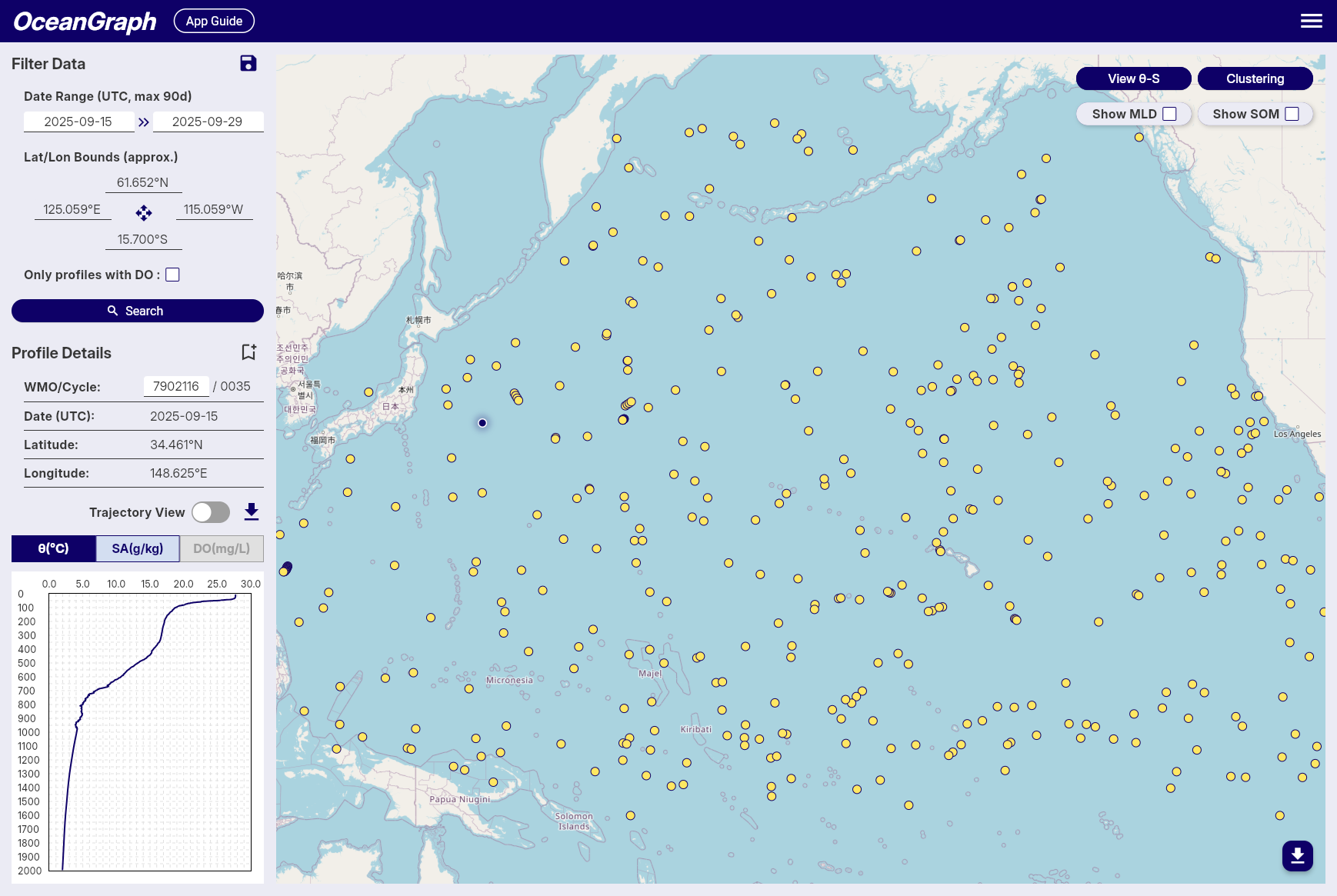
Search Methods
Control Panel
- Use the handle on the control panel’s right edge to hide or show it.
- The map command bar remains available while the panel is hidden. On narrower layouts, signed-in commands are grouped under Tools.
- After moving or zooming the map with the panel hidden, select Search this area to search the visible area with the current filters.
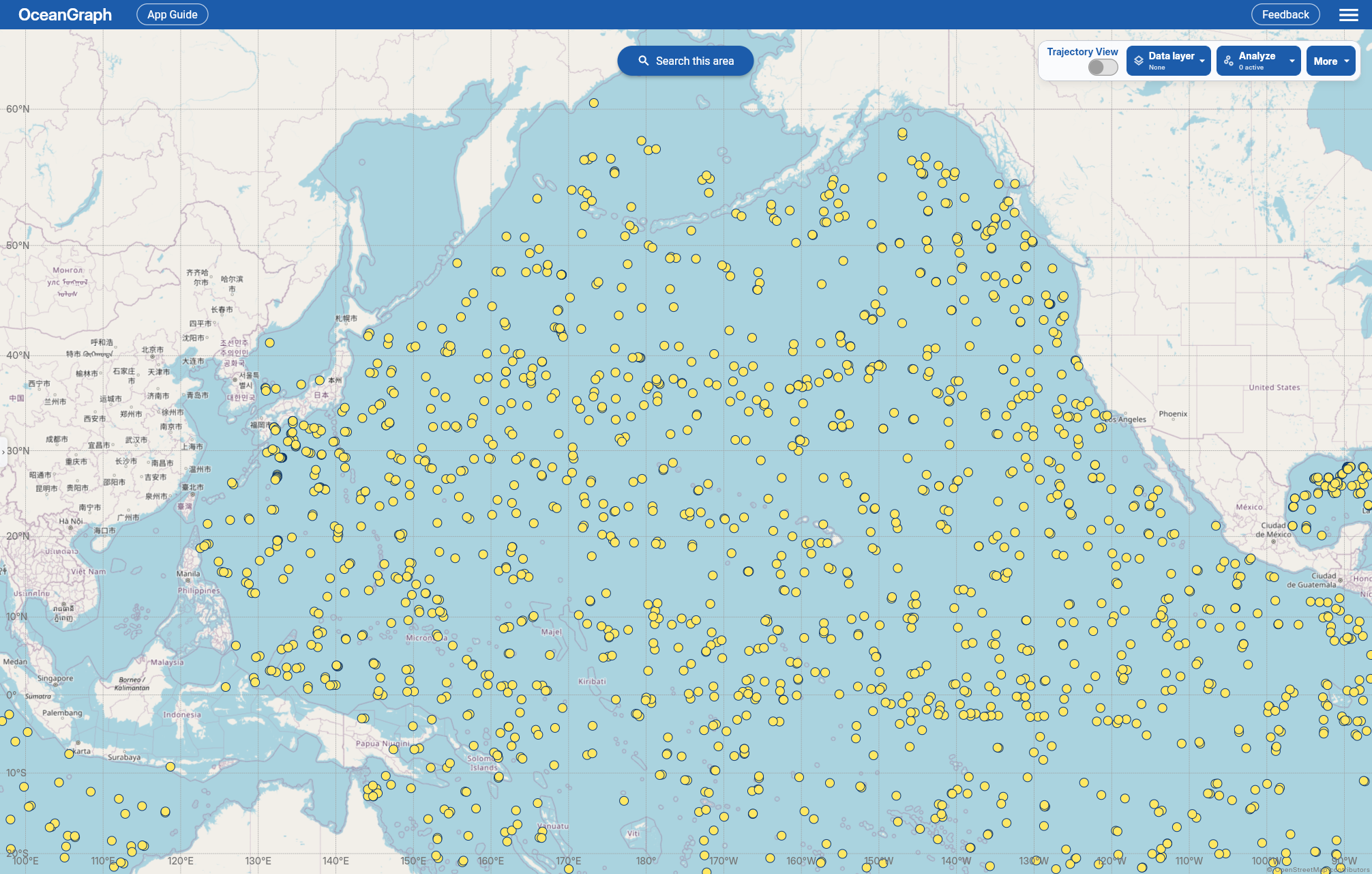
Filter Data Panel
-
Date Range
- Available: October 1999 to present
- Click date fields to select start and end dates
- All times in UTC
- Anonymous users can search up to a 30-day range; signed-in users can search up to a 90-day range
-
Geographic Bounds
- Move or zoom the map to set the search area
- With Trajectory off and the map focused, use the arrow keys to pan or + and − to zoom. See Trajectory navigation for selecting profiles with the arrow keys.
- Keyboard focus returns to the map on startup, after a successful search, and when returning from App Guide or Feedback. Mouse/touch selections in the controls also return focus to the map.
- Tab navigation, typing, menus, dialogs and chart controls keep keyboard priority. If you focus another control during a search, completion does not move focus back to the map.
- Select Lat/Lon Bounds (approx.) to view the coordinates
-
Data Availability
- “Only profiles with BGC” checkbox for profiles that include at least one supported BGC parameter: dissolved oxygen, chlorophyll, nitrate, backscattering, pH, downwelling irradiance at 490 nm, or PAR
- Not every BGC parameter has an in-app chart. Downwelling irradiance at 490 nm can be included in search and downloaded profile data, but it is not currently displayed as a chart.
-
Bookmark Searches
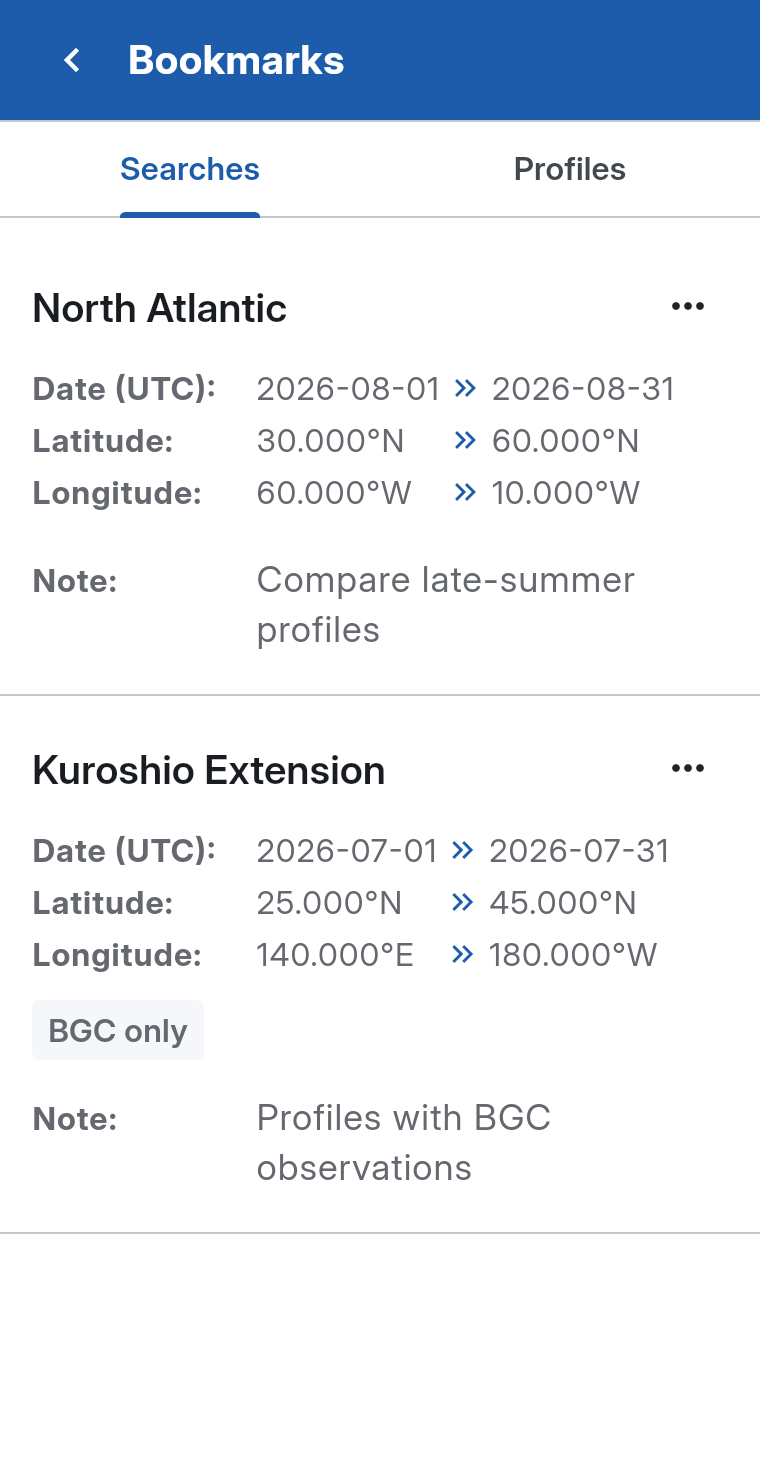
Note: Available to signed-in users only
- Click Bookmark search (the bookmark icon) to create a search bookmark with the current search parameters
- Automatic naming by date range
- Up to 10 search bookmarks can be stored
Profile Details Panel
-
WMO ID Search
- Enter WMO ID and press Enter
- Returns all profiles for that specific float
-
Profile Information
- WMO ID, Cycle Number, Date (UTC), Latitude, Longitude
-
Bookmark Profiles
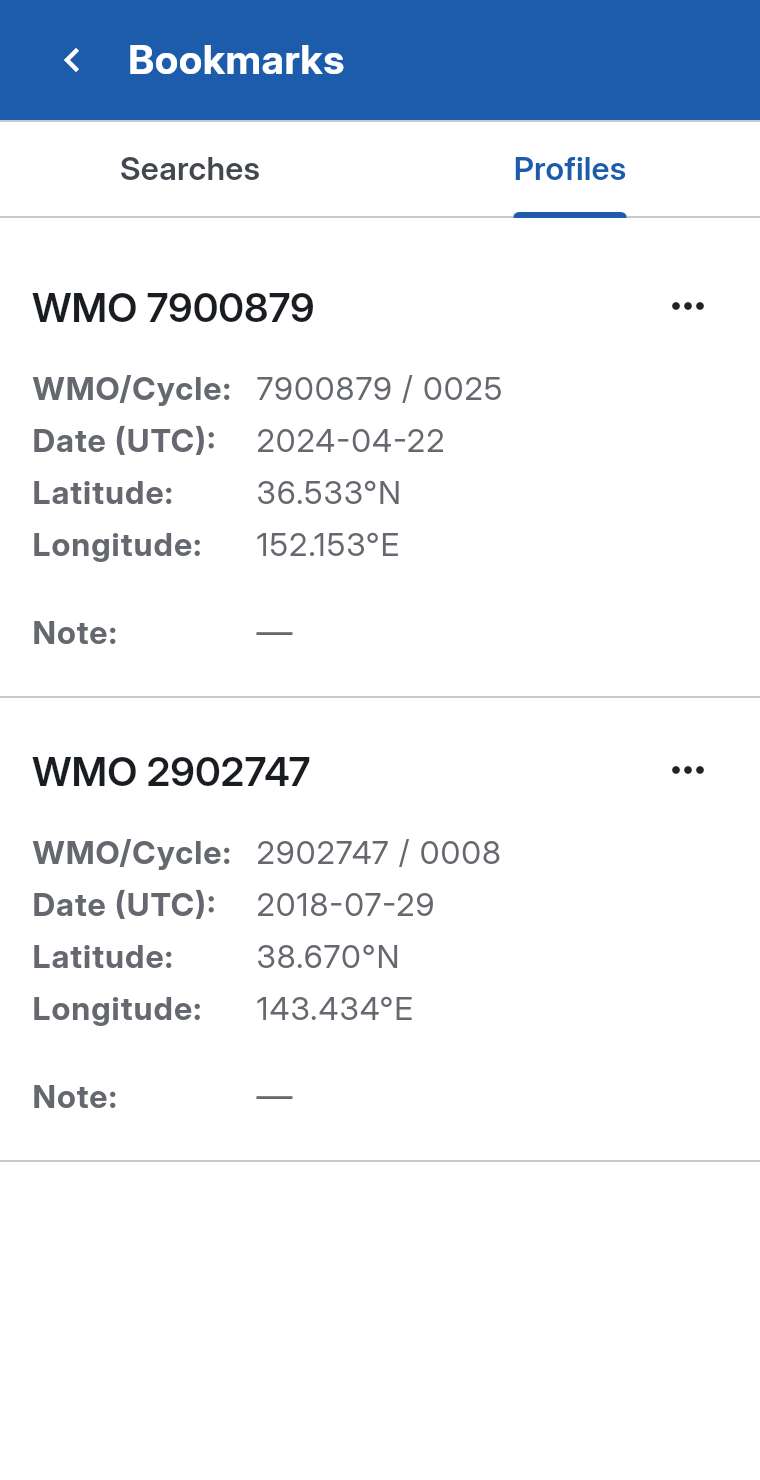
Note: Available to signed-in users only
- Click Bookmark profile (the bookmark icon) to create a profile bookmark
- A status indicator shows which profiles are already bookmarked, preventing duplicates
- Up to 10 profile bookmarks can be stored
-
Download Profile Data
Note: Available to signed-in users only
- Use Download profile beside the bookmark action in the Profile Details heading.
- The action becomes available only after the data for the currently selected WMO ID and cycle has loaded. It remains disabled while data is missing, loading, or belongs to an older selection.
Using Bookmarks
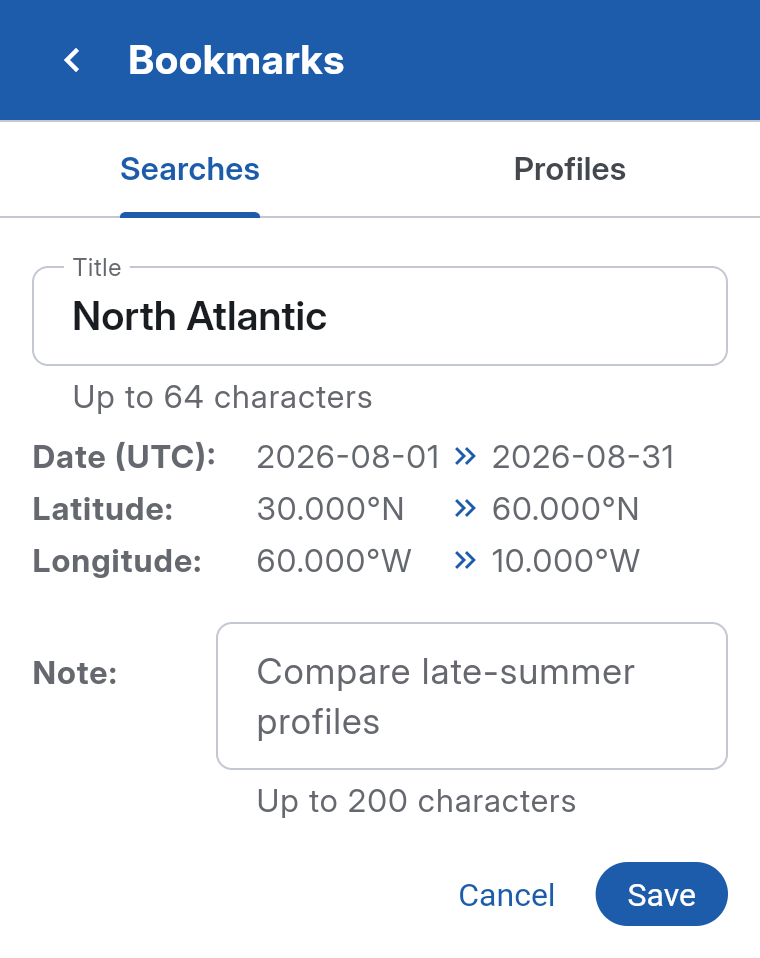
Open Menu > Bookmarks, then choose the Searches or Profiles tab.
- Select a search card to search again with its saved filters, or a profile card to load its float and select the saved cycle when available. The drawer closes and keyboard focus returns to the map.
- Select ⋯ > Edit to change the title (up to 64 characters) or note (up to 200 characters), then select Save. Use Cancel to discard that item’s edits.
- Select ⋯ > Delete to remove a bookmark.
You can also focus a card with Tab and activate it with Enter or Space.
Save your edits before switching tabs, returning to the menu, or closing the drawer; otherwise they are discarded.
Results and Analysis Limits
Matching profiles appear as map markers; select one to open its details. If a search input is too broad for θ–S Diagram or Clustering, the corresponding Analyze item shows the current count and remains disabled. Narrow the date range or geographic bounds to 500 profiles or fewer. OceanGraph does not sample or split oversized inputs. Requests are also rate-limited; signing in does not increase an endpoint’s request limit.
For 3D View, the 500-profile limit applies to the selected rectangle, so a larger loaded set can still be narrowed on the map.
Related Reading
For guidance on choosing between regional, date-based, WMO ID, and BGC searches, read Finding Argo Float Profiles by Location, Time, and WMO ID in OceanGraph Articles.